Image Crop Tool
Crop images to any size or aspect ratio — free and private
Crop settings
Image
Image information
Quick tips
What is an Image Crop Tool?
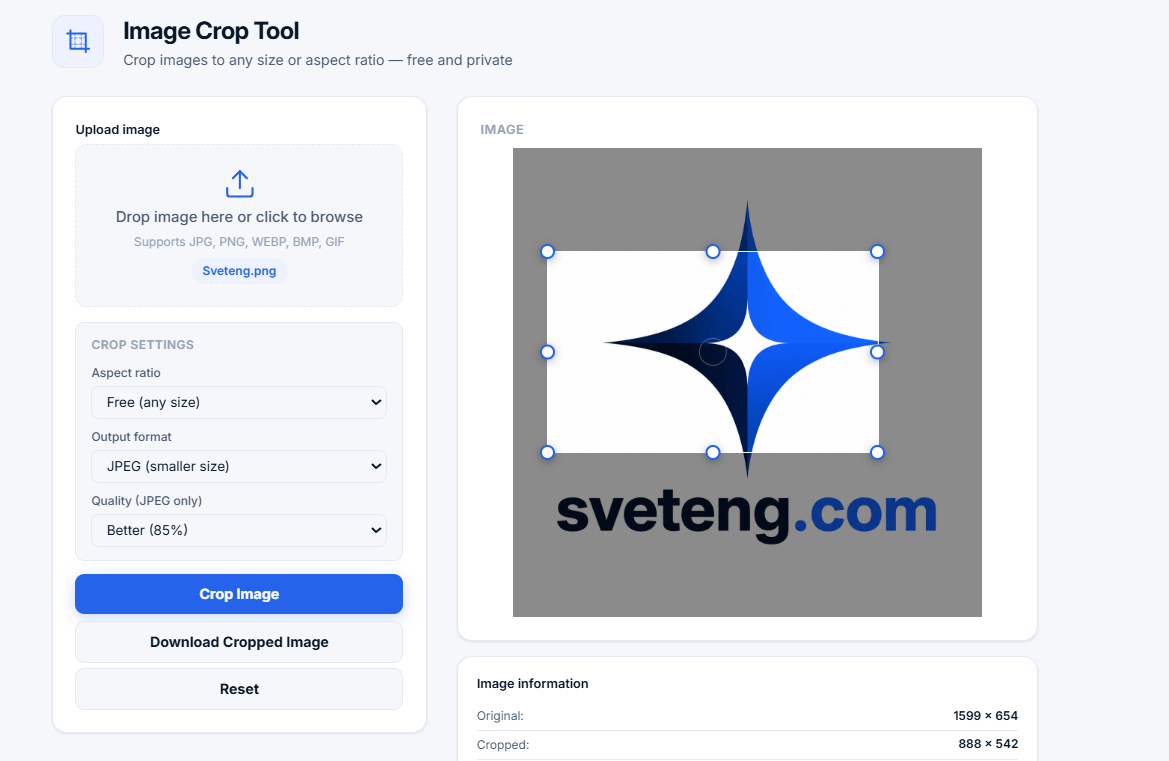
An Image Crop Tool is a utility that allows you to cut out a specific portion of an image. This is useful for removing unwanted areas, focusing on a subject, or preparing images for social media, websites, print, or design projects.
Our free online image cropper lets you upload JPG, PNG, WEBP, BMP, and GIF images, select the exact area you want to keep, and download the result instantly. All processing happens locally in your browser — your images are never uploaded to any server, ensuring complete privacy.
💡 Why crop images? Cropping helps you remove distractions, improve composition, focus on subjects, and prepare images for specific formats like social media posts, thumbnails, profile pictures, and print. It's one of the most essential photo editing techniques.
How to Use the Image Crop Tool
- Upload — Click the upload area or drag and drop your image
- Select — Drag the crop box or use handles to choose the area
- Choose ratio — Pick a preset ratio or enter custom dimensions
- Crop — Click the Crop Image button to apply
- Download — Save your cropped image in PNG, JPEG, or WEBP
Popular Aspect Ratios and Their Uses
Who Benefits from an Image Crop Tool?
- Social media managers — Prepare images for Instagram, Facebook, Twitter, TikTok
- Content creators — Create thumbnails for YouTube and blogs
- Photographers — Refine composition and remove distractions
- Web designers — Prepare images for websites and apps
- E-commerce sellers — Crop product images for online stores
- Print designers — Prepare images for flyers, posters, and brochures
- Students and educators — Create visual content for projects
- Anyone — Edit photos quickly without installing software
Why Use Our Image Crop Tool?
- 100% free and unlimited — No sign-up, no hidden fees, no limits
- Privacy-first — All processing in your browser, no uploads
- Multiple formats — Supports JPG, PNG, WEBP, BMP, GIF
- Preset ratios — 1:1, 4:3, 3:2, 16:9, 21:9, 5:4, and custom
- Quality control — Choose output quality (70%, 85%, 95%)
- Keyboard shortcuts — Ctrl+Enter to crop, Esc to reset
- No installation — Works in any modern browser
- No ads — Clean, distraction-free experience
Image Cropping vs. Image Resizing
Understanding the difference between cropping and resizing is important for image editing:
- Cropping — Removes parts of an image to focus on a specific area. Changes the composition and aspect ratio. Example: Removing distracting background elements from a photo.
- Resizing — Changes the overall dimensions of the entire image while keeping the same composition. Example: Making a 4000×3000 photo into 800×600 for web use.
- Best practice — Crop first to get the right composition, then resize if needed for specific dimensions.
Common Questions About Image Cropping
What is the best aspect ratio for Instagram?
For Instagram feed posts, 1:1 (square) is the most common and displays well in the grid. For stories and reels, use 9:16 (vertical). For landscape posts, 4:5 is recommended for optimal feed display.
What is the best aspect ratio for YouTube thumbnails?
YouTube thumbnails display best at 16:9 with a resolution of 1280×720 pixels. Our tool includes this preset for quick thumbnail creation.
What is the best format for cropped images?
Use PNG for images with text, logos, or transparency. Use JPEG for photographs (smaller file size). Use WEBP for modern web use (best compression).
Can I crop images on mobile?
Yes. Our tool is fully responsive and works on smartphones, tablets, and desktops. You can upload images from your camera roll and crop them on the go.
Does cropping reduce image quality?
Cropping itself does not reduce quality — it simply cuts out a portion of the image. However, the resolution of the cropped area will be lower if you crop to a very small area. Our tool preserves the original quality of the selected area.
Can I undo a crop?
Yes. Click the Reset button to restore the original crop box position. If you've already cropped and downloaded, you can always re-upload the original image and start over.
Tips for Better Cropping Results
- Rule of thirds — Place your subject along the imaginary grid lines for better composition
- Leave breathing room — Don't crop too tightly, leave some space around your subject
- Consider the final use — Crop based on where the image will be displayed (social media, print, web)
- Keep the original — Always keep your original images as backup
- Use keyboard shortcuts — Ctrl+Enter to crop, Esc to reset for faster workflow
Related Tools
- Image Compressor — Reduce image file sizes without losing quality
- Compound Interest Calculator — Calculate investment growth
- Percentage Calculator — Calculate percentages quickly
- Password Generator — Create strong, secure passwords